


SPF, DKIM and DMARC are email authentication protocols that prove messages are connected to the domain they claim to represent. Together, they reduce domain spoofing, give receiving servers more information about legitimate mail and support reliable email delivery.
| Element | Standard business email | Cold email |
|---|---|---|
| Subject line | States the topic or requested action | Establishes relevant context without clickbait |
| Greeting | Matches the existing relationship | Uses the prospect’s name |
| Opening | Refers to shared work or an earlier conversation | Shows why this particular person was contacted |
| Body | Provides the necessary details | Connects one problem or goal to a concise value proposition |
| CTA | Requests a specific action | Asks one low-friction question |
| Signature | May include full contact details | Remains short and credible |
| Length | Depends on the context | Usually shorter than standard correspondence |
In short, SPF checks the sending source, DKIM verifies a message signature, and DMARC connects those checks to the domain recipients see.
TL;DR
- SPF authorizes sending servers.
- DKIM signs outgoing messages.
- DMARC checks domain alignment and sets a failure policy.
- DMARC passes when either aligned SPF or aligned DKIM passes.
- SPF commonly breaks during forwarding, while DKIM may survive if the signed content remains unchanged.
- Gmail, Yahoo and Outlook.com require all three protocols for high-volume senders.
- Lower-volume requirements vary, but configuring all three remains the safest baseline in 2026.
Want to check your authentication status? Run a Woodpecker Domain Check-Up from Settings → Accounts → select your mailbox → Domain Check-Up.
How SPF, DKIM and DMARC work together
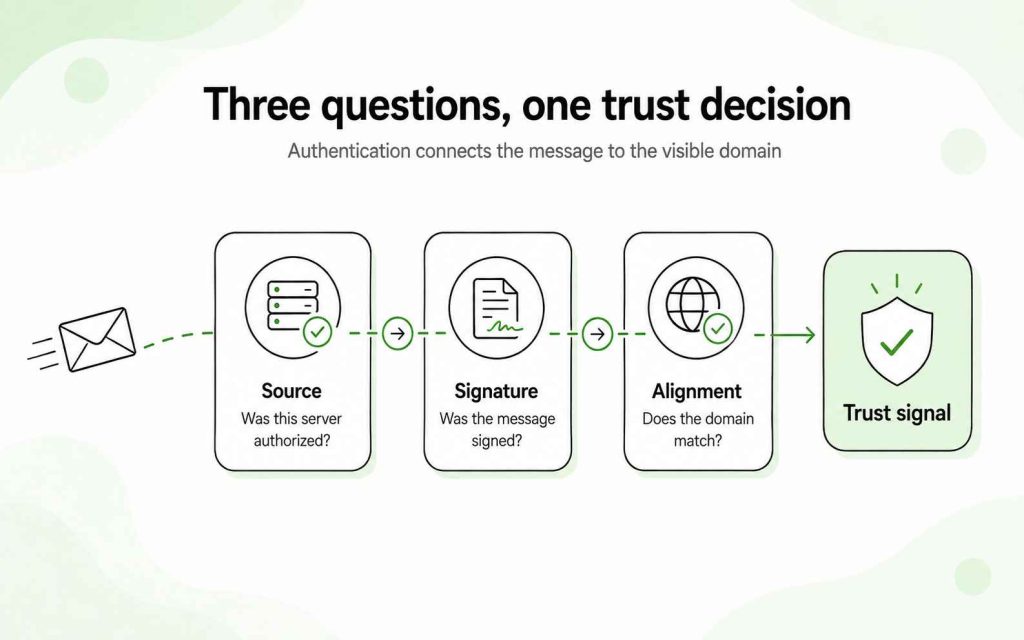
The three protocols solve different parts of the same problem.
When an email arrives, the receiving server may ask:
- SPF: Is this sending server authorized by the domain used in the message envelope?
- DKIM: Does the message have a valid cryptographic signature from the signing domain?
- DMARC: Does the domain that passed SPF or DKIM align with the domain visible in the From address?
- DMARC policy: If neither aligned check passes, should the message be monitored, quarantined or rejected?
SPF and DKIM provide authentication results. DMARC connects those results to the visible From domain and tells receivers how the domain owner wants failures handled.
| Feature | SPF | DKIM | DMARC |
|---|---|---|---|
| Main purpose | Authorize sending sources | Verify a cryptographic signature | Check alignment and apply a policy |
| Published in DNS | Yes | Yes | Yes |
| Common record type | TXT | TXT or provider-supplied CNAME | TXT |
| Checks sending IP | Yes | No | Uses the SPF result |
| Checks message integrity | No | Yes | Uses the DKIM result |
| Provides reports | No | No | Yes |
| Usually survives forwarding | No | Often, if signed content remains intact | May pass through aligned DKIM |
| Reduces direct domain spoofing alone | Partially | Partially | Strongly at an enforcement policy |
DNS examples in this article use example.com and placeholder values. Do not copy them into a production domain without replacing the sending services, selector, public key and reporting address with your own information.
What is SPF?
SPF stands for Sender Policy Framework. It is a DNS-based authentication method that identifies the servers permitted to send mail using a domain in the SMTP envelope.
Suppose your company uses Google Workspace for employee mail and another platform for transactional messages. Your SPF record should authorize every legitimate service that sends using your domain.
When a message arrives, the receiving server:
- Reads the domain from the Return-Path or SMTP MAIL FROM address.
- Looks up that domain’s SPF record.
- Compares the sending IP address with the authorized sources.
- Returns an SPF result such as pass, fail, softfail or neutral.
SPF does not directly authenticate the From address displayed in the recipient’s inbox. DMARC adds that alignment check.
Basic SPF record example
v=spf1 include:_spf.google.com ~all
This record contains three parts:
- v=spf1 identifies the SPF version.
- include:_spf.google.com authorizes servers covered by Google’s SPF record.
- ~all marks other sources as a soft fail.
The correct value depends on every platform sending mail for your domain. Follow each provider’s official instructions before changing the record.
SPF setup table
| Record type | Where it goes | Example value |
|---|---|---|
| TXT | Root domain, often entered as @ | v=spf1 include:_spf.google.com ~all |
DNS interfaces label the root differently. Some use @, while others expect the domain name or an empty Host field.
What should you include in SPF?
Include services that send using their own infrastructure on behalf of your domain.
| Sending service | Include in SPF? | Example mechanism |
|---|---|---|
| Google Workspace | Yes | include:_spf.google.com |
| Microsoft 365 | Yes | include:spf.protection.outlook.com |
| Mailchimp | Yes, if it sends for the domain | Use the value provided by Mailchimp |
| Help Scout | Yes, if it sends for the domain | Use the value provided by Help Scout |
| Amazon SES | Yes, where required by the configuration | Use the SES value provided for your setup |
| Woodpecker | No separate Woodpecker include | Woodpecker sends through your connected mailbox and SMTP |
Woodpecker does not need to be added as a separate SPF sender because messages are sent through the mailbox you connect. The email provider or SMTP service behind that mailbox still needs to be authorized.
How to set up SPF
- List every platform that sends email for your domain.
- Check whether an SPF record already exists.
- Obtain the official SPF mechanism from every sending provider.
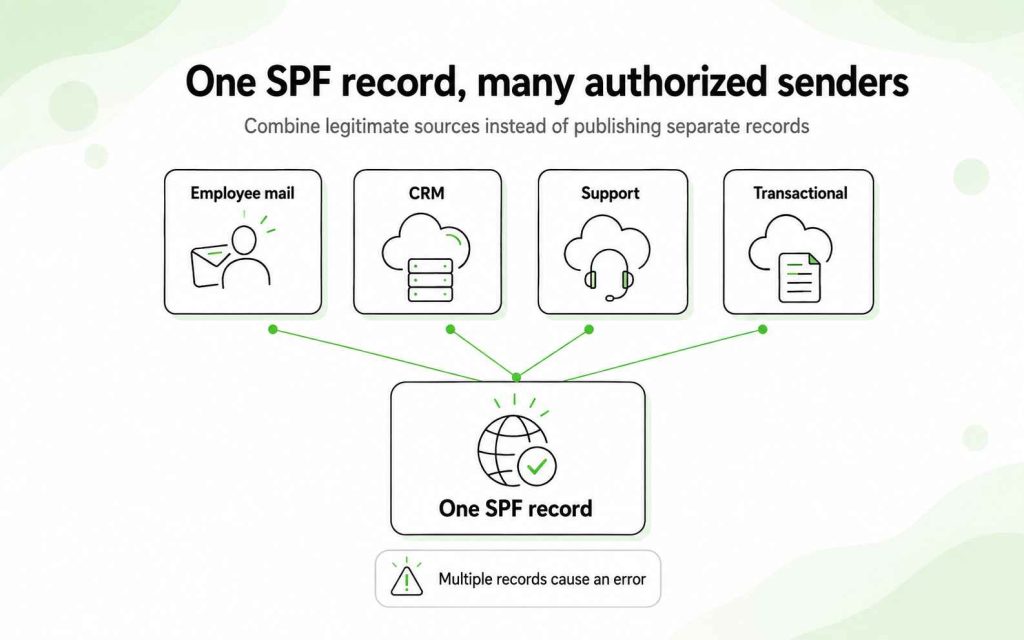
- Combine legitimate sources into one SPF record.
5. Publish the record as TXT at the correct DNS host.
6. Wait for DNS propagation.
7. Test the record and send a message to confirm SPF passes.
If Google Workspace is your only sending service, the record may look like this:
v=spf1 include:_spf.google.com ~all
If Google Workspace and another authorized service both send mail, the record may contain more than one mechanism:
v=spf1 include:_spf.google.com include:example-sender.com ~all
Replace example-sender.com with the value provided by the actual service.
Common SPF mistakes
Publishing more than one SPF record
A domain should have one SPF TXT record. If several services send mail, combine their mechanisms into the same record.
Forgetting a legitimate sending service
Support tools, CRMs, newsletter platforms, transactional email services and other systems may send mail using your domain. Missing one may cause its messages to fail SPF.
Exceeding the lookup limit
SPF evaluation permits no more than 10 DNS-querying mechanisms. Too many nested include statements may produce a permanent SPF error.
Using copied values without checking the provider
An SPF record that works for another company may not represent your sending infrastructure. Build the record from the services your domain actually uses.
Assuming SPF authenticates the visible From address
SPF checks the SMTP envelope domain. DMARC determines whether that authenticated domain aligns with the From address shown to the recipient.
What is DKIM?
DKIM stands for DomainKeys Identified Mail. It attaches a cryptographic signature to selected parts of an outgoing email.
The sending service uses a private key to create the signature. The corresponding public key is published in DNS. A receiving server retrieves that public key and uses it to validate the signature.
A successful DKIM check indicates that:
- The message was signed by a system holding the private key for the signing domain.
- The signed headers and body content were not altered in a way that invalidates the signature.
DKIM uses a selector so a domain may publish and rotate multiple keys. The selector appears in the DKIM signature and tells the receiving server where to find the correct public key.
Basic DKIM record example
v=DKIM1; k=rsa; p=<PUBLIC_KEY_FROM_YOUR_PROVIDER>
<PUBLIC_KEY_FROM_YOUR_PROVIDER> is a placeholder. Your email provider generates the actual public key and selector.
DKIM setup table
| Record type | Where it goes | Example value |
|---|---|---|
| TXT or provider-supplied CNAME | <selector>._domainkey.example.com | v=DKIM1; k=rsa; p=<PUBLIC_KEY_FROM_YOUR_PROVIDER> |
Some providers publish DKIM through TXT records. Others, including certain Microsoft 365 configurations, provide CNAME records. Use the record type, selector and value generated in your email administrator panel.
How to set up DKIM
- Open your email provider’s administrator console.
- Find the DKIM or email authentication settings.
- Generate a DKIM key and selector.
- Copy the supplied TXT or CNAME record.
- Add it to your DNS configuration.
- Wait for the record to propagate.
- Return to the email provider and enable DKIM signing.
- Send a test message and verify that DKIM passes.
Publishing the DNS record does not always activate signing. Google Workspace and other providers may require you to return to the admin console and start authentication after DNS propagation.
Common DKIM mistakes
- Publishing the key under the wrong selector
- Leaving out ._domainkey from the DNS host
- Copying an incomplete public key
- Adding quotation marks or spaces not expected by the DNS provider
- Publishing the record but forgetting to activate signing
- Leaving old selectors active indefinitely after rotating keys
- Assuming that a valid signature automatically passes DMARC
DKIM may pass even if its signing domain differs from the visible From domain. DMARC requires those domains to align.
SPF vs. DKIM: what is the difference?
SPF authenticates the sending source. DKIM authenticates a cryptographic signature attached to the message.
| Question | SPF | DKIM |
|---|---|---|
| What does it check? | Whether the sending IP is authorized | Whether the signature is valid |
| Which domain does it use? | SMTP MAIL FROM or Return-Path domain | Domain in the DKIM d= tag |
| Does it verify content integrity? | No | Yes, for signed content |
| Does it usually survive forwarding? | No | Often |
| Does it require a DNS record? | Yes | Yes |
| Is it enough for DMARC? | Yes, if it passes and aligns | Yes, if it passes and aligns |
| Should you configure both? | Yes | Yes |
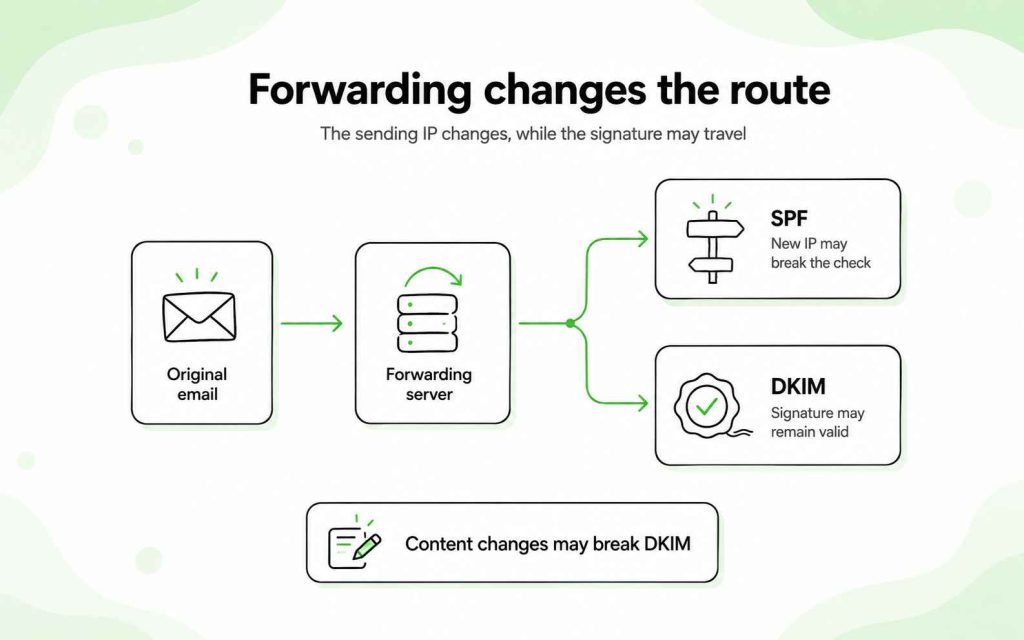
SPF often fails after forwarding because the forwarding server’s IP is not listed in the original sender’s SPF record.
DKIM may continue to pass because the signature travels with the message. However, forwarding services that modify signed headers or body content may break the signature.
For this reason, configuring both provides more resilience than relying on either method alone.
What is DMARC?
DMARC stands for Domain-based Message Authentication, Reporting and Conformance.
It builds on SPF and DKIM by checking whether an authenticated domain aligns with the domain displayed in the From address.
DMARC also lets the domain owner:
- Publish a policy for messages that fail authentication
- Receive aggregate reports about email using the domain
- Identify unknown or unauthorized sending sources
- Move gradually from monitoring to enforcement
Basic DMARC record example
v=DMARC1; p=none; rua=mailto:[email protected]
This example contains:
- v=DMARC1 — the DMARC version
- p=none — a monitoring policy
- rua=mailto:… — the address that receives aggregate reports
DMARC setup table
| Record type | Where it goes | Example value |
|---|---|---|
| TXT | _dmarc.example.com | v=DMARC1; p=none; rua=mailto:[email protected] |
Replace example.com and the reporting address before publishing the record.
How DMARC authentication and alignment work
DMARC evaluates two possible paths:
SPF path
For DMARC to pass through SPF:
- SPF must pass.
- The authenticated MAIL FROM domain must align with the visible From domain.
DKIM path
For DMARC to pass through DKIM:
- DKIM must pass.
- The domain in the DKIM d= tag must align with the visible From domain.
DMARC passes if at least one of these paths passes with alignment.
| SPF result | DKIM result | Alignment | DMARC result |
|---|---|---|---|
| Pass | Fail | SPF aligned | Pass |
| Fail | Pass | DKIM aligned | Pass |
| Pass | Pass | At least one aligned | Pass |
| Pass | Pass | Neither aligned | Fail |
| Fail | Fail | None | Fail |
SPF and DKIM do not both need to pass for DMARC to pass. Still, configuring both correctly protects delivery when one authentication path breaks.
DMARC alignment: relaxed vs. strict
DMARC supports two alignment modes.
Relaxed alignment
The authenticated domain and From domain may use different subdomains of the same organizational domain.
For example:
- From domain: example.com
- DKIM domain: mail.example.com
These may align under relaxed alignment.
Strict alignment
The authenticated domain must match the From domain exactly.
Strict alignment offers tighter control but may require more careful configuration across subdomains and sending platforms.
Most domains start with relaxed alignment unless their security requirements justify a stricter approach.
DMARC policies
DMARC supports three main policies:
| Policy | What it tells receivers | Recommended stage |
|---|---|---|
| p=none | Monitor failures without requesting quarantine or rejection | Initial discovery and reporting |
| p=quarantine | Treat failing messages as suspicious, commonly placing them in spam | After legitimate senders have been identified |
| p=reject | Reject messages that fail DMARC | Full enforcement after testing |
A p=none record provides visibility but does not actively request that receivers block impersonating messages. The long-term security goal is usually p=reject, reached after legitimate sending sources consistently authenticate.
A stricter policy should not be introduced blindly. If an unlisted platform sends legitimate mail for your domain, enforcement may disrupt that traffic.
How to set up DMARC safely
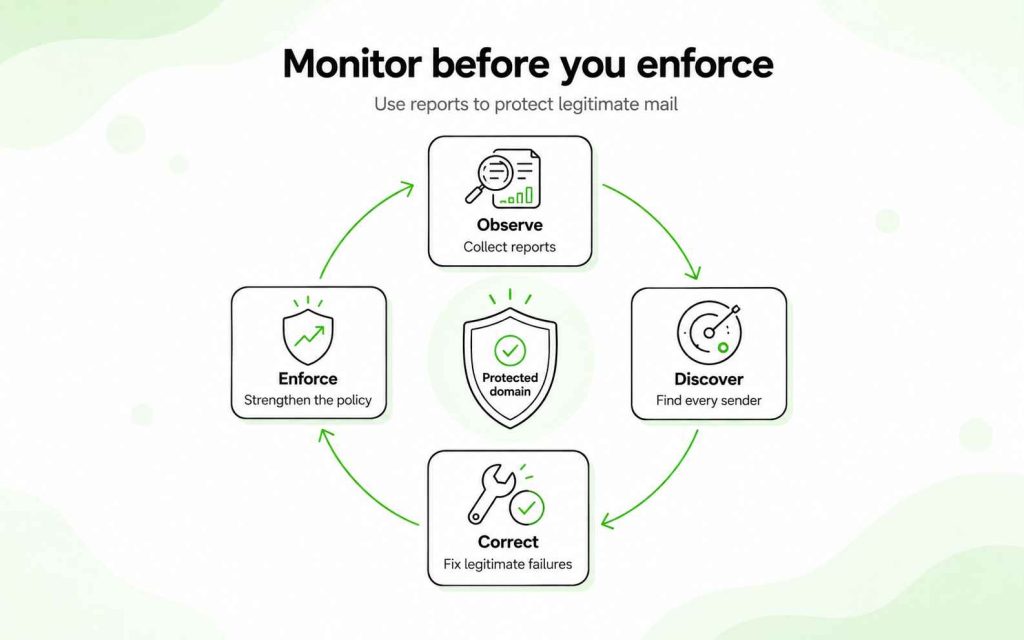
Step 1: Configure SPF and DKIM
DMARC depends on their authentication results. Confirm that legitimate services pass SPF, DKIM or preferably both.
Step 2: Identify every sending source
Include employee mail, support systems, CRM messages, marketing platforms, transactional mail and any service sending on behalf of the domain.
Step 3: Publish a monitoring record
Start with:
v=DMARC1; p=none; rua=mailto:[email protected]
Step 4: Review the reports
DMARC aggregate reports reveal which sources use the domain and whether their messages pass authentication and alignment.
Step 5: Correct legitimate failures
Update SPF, activate DKIM or adjust domain alignment for services that should be sending.
Step 6: Move toward enforcement
After confirming that legitimate traffic passes, consider progressing from:
p=none
to:
p=quarantine
and ultimately:
p=reject
The time needed for monitoring depends on the size and complexity of the email environment. Do not use an arbitrary deadline if you have not identified all legitimate senders.
Why SPF and DKIM are not enough without DMARC
SPF and DKIM return authentication results, but neither protocol alone requires alignment with the visible From domain.
An attacker could use one domain to pass SPF while placing a different domain in the visible From address. DKIM could also produce a valid signature from a domain unrelated to the address shown to the recipient.
DMARC closes this gap by:
- Checking alignment with the visible From domain
- Publishing a policy for failures
- Returning aggregate authentication reports
- Supporting enforcement against direct domain spoofing
DMARC does not stop every form of impersonation. It does not prevent attackers from registering a lookalike domain or using a different display name. It specifically addresses unauthorized use of the protected From domain.
The forwarding caveat
Forwarding is one reason SPF and DKIM should be configured together.
When a server forwards an email, the new forwarding IP usually is not authorized in the original sender’s SPF record. SPF may therefore fail.
DKIM often survives because its signature remains attached to the message. If the forwarding service changes signed content, however, DKIM may also fail.
DMARC may still pass after forwarding when DKIM passes and its signing domain aligns with the From domain.
That is why “SPF fails during forwarding, but DKIM survives” is a useful general rule rather than a guarantee.
Are SPF, DKIM and DMARC required in 2026?
For high-volume senders, all three are explicit requirements at Gmail, Yahoo and Outlook.com. Requirements for lower-volume senders differ by provider.
| Provider | Sender category | Authentication requirement |
|---|---|---|
| Gmail | Senders below 5,000 messages per day to personal Gmail accounts | SPF or DKIM |
| Gmail | Senders of 5,000 or more messages per day to personal Gmail accounts | SPF, DKIM and DMARC with alignment |
| Yahoo | Bulk senders | SPF, DKIM and a valid DMARC policy of at least p=none |
| Outlook.com | Domains sending more than 5,000 messages per day to Outlook.com consumer addresses | SPF, DKIM and DMARC |
Google began applying its bulk-sender requirements in 2024. Microsoft announced its comparable Outlook.com requirements in April 2025 and began routing non-compliant high-volume mail to Junk after May 5, 2025, with rejection identified as a future enforcement step.
These rules also cover requirements beyond authentication, including valid forward and reverse DNS, TLS, low spam complaint rates and one-click unsubscribe for applicable promotional or subscription mail.
Even if you send fewer than 5,000 messages per day, configuring SPF, DKIM and DMARC gives receiving systems consistent authentication signals and gives you visibility into unauthorized mail using your domain.
Authentication is necessary, but it does not guarantee inbox placement. Your domain reputation, complaint rate, bounce rate, recipient engagement and sending behavior still affect delivery.
SPF, DKIM and DMARC for cold email
Every domain used for cold outreach should be authenticated before a campaign begins.
A practical setup includes:
- SPF authorizing the mailbox provider
- DKIM signing activated
- DMARC published initially in monitoring mode
- Valid MX records for receiving replies
- A real mailbox connected to the sending domain
- Gradual sending rather than an immediate volume spike
- Monitoring for authentication failures and reputation changes
Authentication does not replace responsible sending. Respect the mailbox provider’s email sending limits and introduce volume gradually on a new domain. A proper domain warm-up process establishes normal mailbox activity before larger campaigns begin.
Many teams use a separate domain or related domain variation for outbound campaigns. If you take that approach, configure SPF, DKIM and DMARC separately for every active sending domain. Parent-domain records do not automatically cover every subdomain or separate domain.
The full process for setting up a domain and mailbox for cold outreach should be completed before prospects enter the campaign.
How to check your SPF, DKIM and DMARC setup
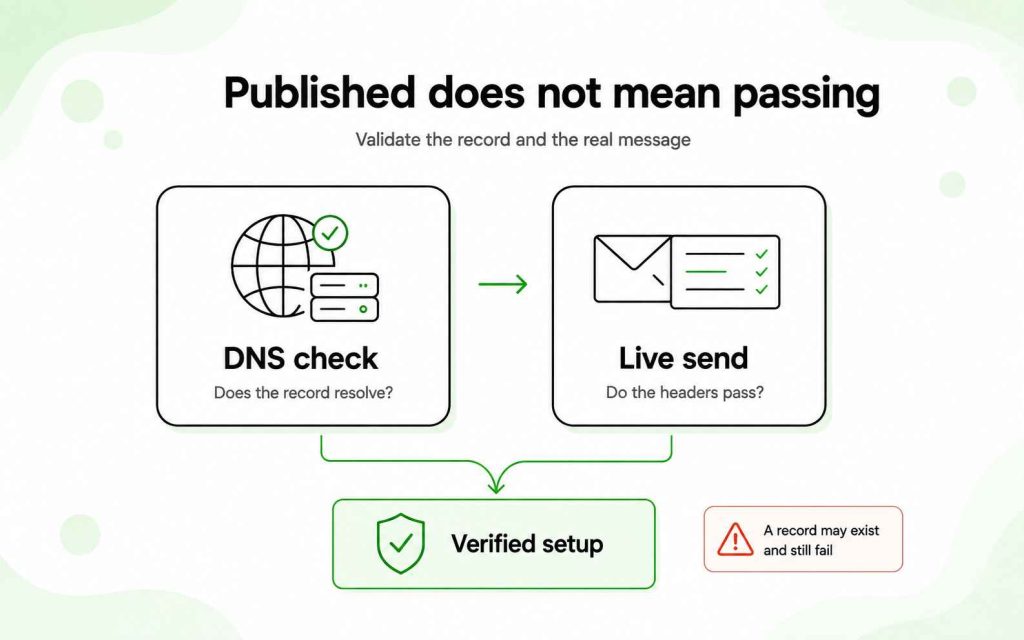
After publishing prospects the records, verify both their DNS presence and their real authentication results.
Check the DNS records
Confirm that:
- One SPF record exists at the expected domain.
- The DKIM selector resolves to the correct TXT or CNAME record.
- A DMARC record exists at _dmarc.yourdomain.com.
- Values do not contain accidental spaces or missing sections.
- DNS changes have propagated.
Send a test email
Send a message to a mailbox where you can inspect the original headers.
Look for results such as:
spf=pass
dkim=pass
dmarc=pass
A DNS record may exist but still fail during a real send because the sending platform uses an unauthorized source or an unaligned domain.
Check every sending platform
Test messages from:
- Your normal employee mailbox
- CRM or sales tools
- Customer support software
- Transactional email services
- Newsletter platforms
- Any other system using your domain
An email deliverability audit should examine authentication alongside reputation, content, sending volume and mailbox configuration.
Check your domain in Woodpecker
Woodpecker users can review their connected domain from:
Settings → Accounts → select the mailbox → Domain Check-Up
The report checks your authentication configuration and highlights issues that need attention before a campaign begins.
Run the check after:
- Connecting a new mailbox
- Changing DNS records
- Adding a sending service
- Moving to another email provider
- Rotating DKIM keys
- Creating a new outreach domain
Run a Woodpecker Domain Check-Up before your next campaign and correct any failed authentication checks before sending.
FAQ
Do I need all three: SPF, DKIM and DMARC?
High-volume senders need all three to meet the current Gmail, Yahoo and Outlook.com requirements. For lower-volume senders, requirements vary, but using all three provides more complete authentication, alignment, reporting and protection against direct domain spoofing.
What’s the difference between SPF and DKIM?
SPF checks whether the sending server is authorized in the envelope domain’s DNS record. DKIM checks a cryptographic signature attached to the email. SPF is based on the sending source, while DKIM verifies the signing domain and signed message content.
Are SPF, DKIM and DMARC required in 2026?
All three are required for high-volume senders delivering to personal Gmail, Yahoo and Outlook.com addresses. Gmail defines a bulk sender as one sending at least 5,000 messages per day to personal Gmail accounts. Microsoft applies its rule to domains sending more than 5,000 messages per day to Outlook.com consumer addresses. Lower-volume rules vary, but complete authentication remains strongly recommended.
Does DMARC require SPF and DKIM to pass?
No. DMARC passes when either SPF or DKIM passes and the authenticated domain aligns with the visible From domain. Having both configured provides a fallback if one method fails.
Can I publish multiple SPF records?
No. Publish one SPF record per domain. Combine the authorized sending services within that record. Multiple SPF records cause a permanent SPF evaluation error.
What DMARC policy should I start with?
Start with p=none to collect reports and identify legitimate sending sources without requesting that failed messages be blocked. After resolving legitimate failures, move gradually toward p=quarantine and p=reject.
How do I know whether DKIM is working?
Send a test email and inspect the original message headers for dkim=pass. You should also confirm that the selector in the message resolves to the correct DNS record.
Does SPF survive email forwarding?
Usually not. Forwarding changes the sending server, and that server may not appear in the original domain’s SPF record. DKIM may survive if the forwarding process does not alter signed parts of the message.
Does setting up SPF, DKIM and DMARC guarantee inbox placement?
No. Authentication is a prerequisite for trustworthy sending, not a guarantee of inbox placement. Domain reputation, list quality, complaints, bounces, message content and sending behavior also influence delivery.