Domain reputation, checked on every mailbox you connect

Connect a mailbox for cold email and Woodpecker checks its domain: SPF record, DKIM signature and domain age. Three rows per mailbox, so you can rule out the domain reputation basics when a campaign misses the inbox.

4.5/5

Trusted by 13,000+ professionals in 101 countries

A hand holding a magnifying glass up to a mailbox on a wooden post, its front drawn as a closed envelope

Your domain reputation decides where a cold email lands

Domain reputation is the standing of the domain your email comes from, judged by the providers that decide whether to deliver it. It is not the same as sender reputation, which belongs to the individual account. Both are part of what email deliverability actually depends on.

Three things about the domain are visible before a single prospect reads anything: whether your SPF record authorizes the server, whether your DKIM signature checks out, and how old the domain is. Domain age is one of the first factors anti-spam filters check, and an incorrect record will harm your domain’s reputation.
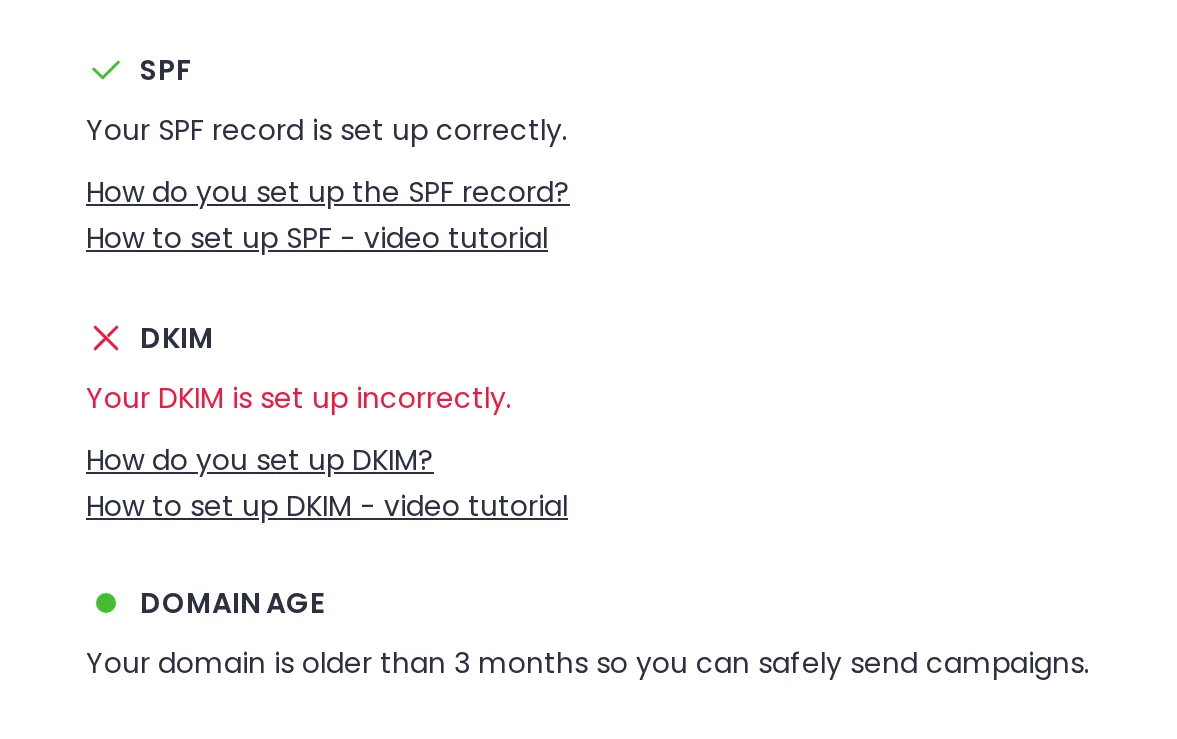

Domain Check-up tab showing an SPF record passing, a DKIM record failing and the domain age

SPF, DKIM and domain age, each with a state you can act on

Three rows and nothing else: no score, no blocklist lookup, no history. Green is a prerequisite for good sending, not a guarantee of it.
A server

SPF: is the server allowed

SPF says which servers may send as your domain. Green means the record is valid, red means it needs updating, and a minus is temporary, so press Refresh.
A signed document

DKIM: is the signature valid

DKIM is a cryptographic signature on the message itself. Same three states as SPF, and Google Workspace keeps DKIM off until you switch it on.
A calendar with a clock

Domain age: old enough

Green means the domain is old enough to send campaigns from. An orange dot means it is too young, and sending now risks burning it.

The email deliverability audit runs on every mailbox

Connect a mailbox and the check runs by itself on the domain it sends from. The result appears on the connection panel, then in Settings.

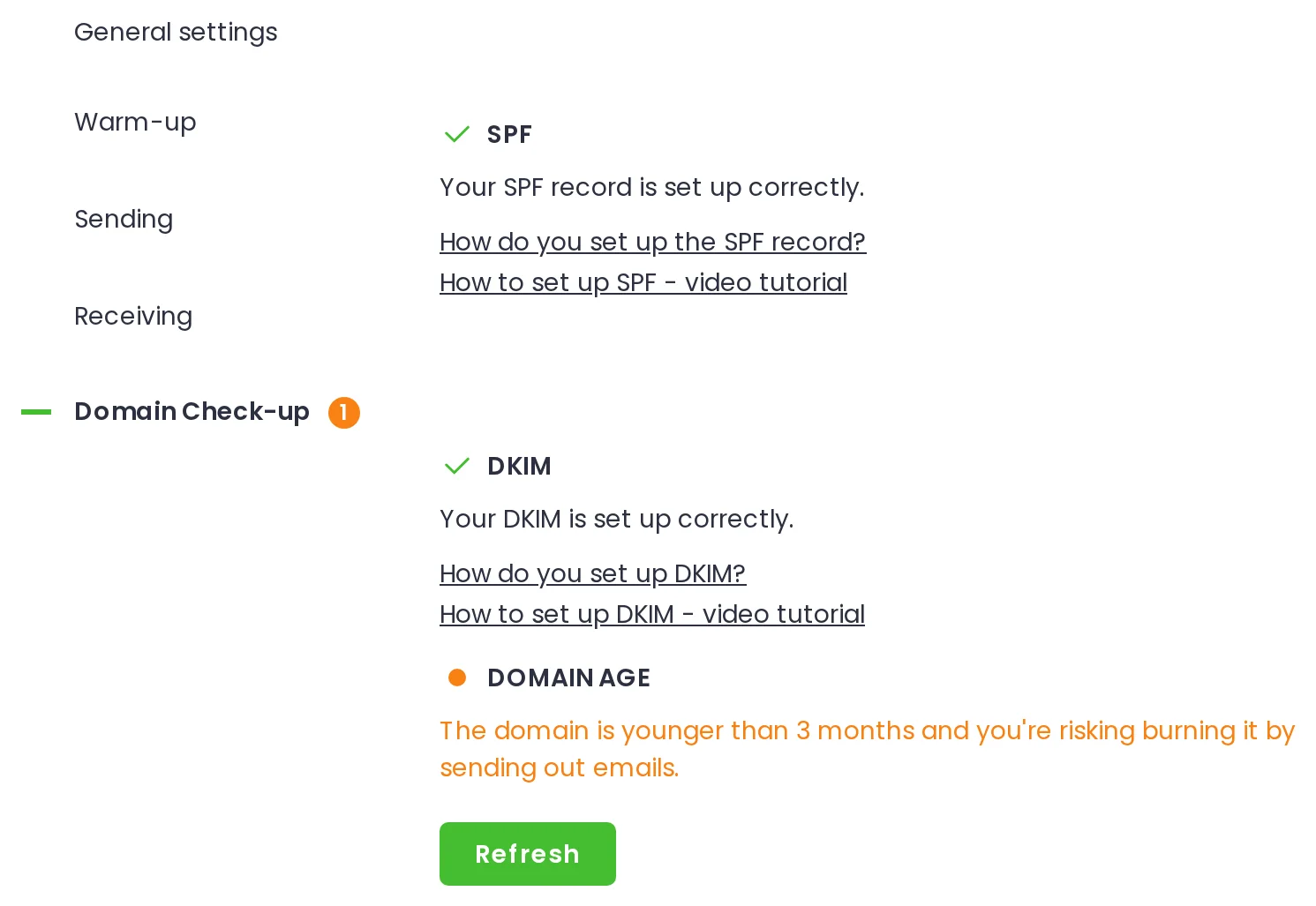
The Domain Check-up tab open in a mailbox's settings, with the Refresh button below the report
  1. 1

    Domain Check-up, in the mailbox's settings

    Settings, Accounts, your mailbox, Domain Check-up. Each mailbox has its own report, and mailboxes on the same domain read the same SPF record.

  2. 2

    The SPF row

    The SPF state, one line of plain English under it, and two setup links, so a red cross points at the article that fixes it.

  3. 3

    The DKIM row

    DKIM sits below SPF, with the same three states, the same one-line verdict and its own setup links.

  4. 4

    The domain age row

    Domain age has two states, not three. Green says the domain is older than 3 months. Orange says it is younger, and sending now risks burning it.

  5. 5

    The Refresh button

    Nothing re-checks on its own. Press Refresh after a DNS change or a DKIM rotation to run the check again.

What a domain reputation check covers, and what it does not

On the domain you send from In the audit Where else to check it
SPF record In the audit Where else to check it MXToolbox SPF lookup
DKIM signature In the audit Where else to check it MXToolbox DKIM lookup
Domain age In the audit Where else to check it who.is or DomainTools
A reputation score In the audit Where else to check it Google Postmaster Tools
Blocklist status In the audit Where else to check it MXToolbox or Cisco Talos
Bounce history over time In the audit Where else to check it The deliverability monitor, a separate screen

A red cross is a DNS fix, an orange dot is a waiting game

To improve your domain reputation, start with what the report flags.

  1. A globe on a stand

    Fix the flagged record at your domain host

    A red cross means the record is set up incorrectly and needs updating at your domain host, not in Woodpecker. Publish one SPF record per domain, on one line, and stay inside the 10 DNS lookup limit.

  2. An electric plug

    Leave Woodpecker out of your SPF record

    There is no need to include Woodpecker in your SPF: campaigns go out through your own server.

  3. A door key

    Turn DKIM on, then rotate the key

    Google Workspace keeps DKIM off until you switch it on. Do that at your provider, then rotate the key every 12 months.

  4. A shield with a check mark

    Add DMARC about 48 hours later

    Add DMARC about 48 hours after SPF and DKIM, starting at p=none. Our report does not check it, and it will not work if both of the others are missing.

  5. A wall calendar page

    Give a young domain time to age

    An orange dot is not a DNS problem. The domain has to age, warm up and start at a safe daily volume.

Reply rates hold until bounces pass 10%

Median reply rate by bounce rate. 65% of campaigns land in the first bar. When bounces climb, our Help Center's first check is SPF and DKIM.

The first three bars are level, and the gap is against campaigns bouncing over 20%. We publish no number for what fixing SPF or DKIM does on its own. Woodpecker benchmarks, 56,614 campaigns from 7,000 companies

Questions people ask before trusting a domain check

  • How do I check my domain reputation?

    In Woodpecker, open Settings, then Accounts, click the mailbox you send from, and open Domain Check-up. The report shows SPF, DKIM and domain age for that domain. Each mailbox has its own report, and mailboxes on the same domain read the same SPF record. For an outside rating, blocklist status or bounce history, use the tools named in the table above, because our report does not collect them. A domain reputation lookup rates any domain you type in, and MXToolbox's email domain health check goes wider still.

  • What is a good domain reputation score?

    Woodpecker does not produce a score, so there is no number to compare yours against. The report gives three states on SPF and DKIM, green, red or a minus, and two on domain age, green or orange. If you want an outside rating, Google Postmaster Tools and Cisco Talos both publish one for the domains they cover. They answer a different question from ours: how a domain looks from outside, not whether the mailbox you just connected is set up to send.

  • How can I increase my domain reputation?

    Fix what the report flags first, because authentication is the part you control directly. Then send like someone worth trusting, with a verified list, modest volume and copy people answer. If the reputation is already damaged, follow the recovery process in the Help Center. Pause the campaigns, send personalized messages by hand, ask recipients to mark you as not spam, and keep the conversation natural.

  • What is the difference between SPF and DKIM, and do I need DMARC?

    SPF checks whether the sending server is authorized in the envelope domain's DNS record. DKIM checks a cryptographic signature attached to the email. Our report covers those two plus domain age, and it does not check DMARC. DMARC is still worth having, so here is how to set up DMARC. Add it about 48 hours after SPF and DKIM, start at p=none, and note that it will not work if both of the others are missing.

  • How old does a domain have to be to send cold email from it?

    Give it at least 3 months. That is the minimum our Help Center and our blog both publish for a fresh domain. Anti-spam filters treat a young domain as unproven, and sending in volume from it risks burning it. The fix is time, not another check, so warm up a young domain before the first campaign.

  • Is the domain audit free?

    Yes. The domain audit is included on all plans at no extra cost. There is no separate add-on to buy, no credits to spend and no per-domain fee, and it runs on every mailbox you connect. It also runs during the trial, which is 14 days or 100 sent emails, whichever comes first. See what is included on every plan.