How many cold emails per day? Adaptive sending watches the cap.

Woodpecker recommends 25 to 35 cold emails a day per mailbox. Your provider allows far more, and hitting its cap is what gets a mailbox blocked. Adaptive sending lowers your volume before you get there.

4.5/5

Free on every plan. Trusted by 13,000+ professionals.

Doodle of a half circle speedometer dial with a small envelope standing on top of it and the pointer arrow pointing up and to the right

How many cold emails per day is safe?

Two numbers matter: the 25 to 35 a day we recommend per mailbox, and the far higher cap your provider enforces.
25–35 emails a day per mailbox
  • Providers block a mailbox for reaching their own cap, not for going past what we recommend.
  • Never send more than 50 a day from one mailbox, whatever your provider allows.
  • For 300 a day, run 10 mailboxes at 30 each, not one pushed to 300.

Reply rates fall as daily volume per mailbox rises

Median reply rate by average emails a day, per mailbox. The green bar is the 21 to 50 band our recommendation sits inside.

7,676 mailboxes that sent at least 500 emails in 90 days. Different use cases are mixed in: some low-volume mailboxes are automation or inbound. Woodpecker cold email benchmarks

Adaptive sending cuts your volume before your provider does

  1. A stack of four envelopes

    Counts what each mailbox has sent today

    Adaptive sending works in the background while your campaigns run, counting what has gone out from each connected email account that day.

  2. A checklist

    Compares that count with your provider's limit

    It checks that count against your provider's limit for the mailbox, and automatically adjusts its sending volume when necessary.

  3. An hourglass

    Cuts your volume by 50% or by 10%

    It reduces your sending volume by 50% for 24 hours or by 10% for 10 days. Neither cut runs past its own window.

  4. A hand bell

    Keeps sending, then tries to restore your settings

    Sending continues in smaller amounts rather than stopping, a notice appears on the campaign, and it tries to return to your original sending parameters.

A day over the limit can cost you the next 48 hours

One mailbox, one busy day Without adaptive sending With adaptive sending
Volume nears your provider's cap Without adaptive sending Nothing changes With adaptive sending Volume drops 50% or 10%
You cross the limit Without adaptive sending Provider blocks the mailbox With adaptive sending Sending continues in smaller amounts
Your campaign that day Without adaptive sending Paused up to 48 hours With adaptive sending Keeps running, slower
How you find out Without adaptive sending A campaign error With adaptive sending A notice on the campaign
The day after Without adaptive sending You lower the limit yourself With adaptive sending Tries to restore your settings
What it costs you Without adaptive sending Sender reputation, over time With adaptive sending Nothing, it is on every plan

You set your cold email sending limits. We watch them.

Your provider sets a hard cap, you type a daily limit, and we recommend 25 to 35. Adaptive sending replaces none of the three.

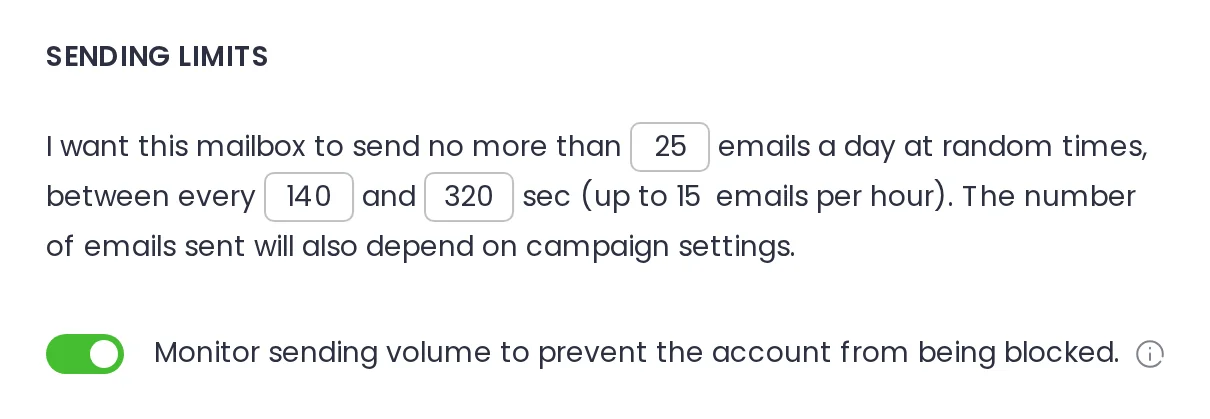
Woodpecker sending settings showing a mailbox daily limit, a send interval and the switch that monitors sending volume
  1. 1

    The daily limit is yours

    Woodpecker suggested it when you connected the email account, and you can change it in Settings under Accounts. A number you type stays where you typed it.

  2. 2

    The gap between sends

    A random interval between sends, here 140 to 320 seconds, so a mailbox does not fire its whole day in one burst. It is its own setting, not adaptive sending.

  3. 3

    The hourly ceiling is derived, not typed

    The 15 emails an hour follows from the send interval. There is no hourly field in this panel for you to fill in.

  4. 4

    The switch that watches the volume

    It reads "Monitor sending volume to prevent the account from being blocked." On by default, per email account, on the Sending tab.

What adaptive sending does not do

One thing you never have to do, and three things this feature will not do for you.

  • A price tag on a string

    It costs nothing and starts by itself

    Adaptive sending is free on every plan and runs on every email account from your first campaign. There is nothing to switch on.

    $0 extra, on every plan

  • Doodle of two light strokes crossing in an X

    It does not stop bounces

    A bad address still bounces. Bounce rate is a separate part of cold email deliverability, and list verification is the thing that handles it.

  • A pin

    It cannot save you from every block

    Our system only reduces the number of emails sent. A Microsoft mailbox restricted for volume is unblocked by hand in the Microsoft Defender portal.

  • A magnifying glass

    One number this page does not show

    The benchmark figures above measure cold email in general, not this feature. You will not find a before-and-after on blocked mailboxes here.

Questions people ask before raising a daily limit

  • How many cold emails should you send per day from a new mailbox?

    Fewer than an established one, and a new mailbox should not run campaigns yet. Warm it up first. During warm-up, Woodpecker holds the volume below whatever daily limit you set. Once it is warmed up, the usual 25 to 35 applies, with 50 as the ceiling. We publish no ramp beyond that: we have no data for one.

  • Is adaptive sending on already, and can I turn it off?

    It is on by default, on every email account. To turn it off, open the account's Sending tab and find, under Sending limits, the switch labeled "Monitor sending volume to prevent the account from being blocked." The app and the Help Center call it Bounce Shield. We recommend leaving it on: turning it off does not raise your provider's cap.

  • Does adaptive sending slow my campaign down, and by how much?

    Yes, while it is acting. Sending continues in smaller amounts rather than stopping, so the same volume takes longer. The cut is either 50% for 24 hours or 10% for 10 days, and neither runs past its own window. Across a week, the most it takes out is about a tenth of what you planned.

  • What happens if I exceed my provider's sending limit?

    Sending from that mailbox stops. Your provider blocks it, and the app puts that block at up to 48 hours. Woodpecker pauses that mailbox's campaigns for the duration, then starts them again on its own. Do it often and you risk longer blocks and a damaged sender reputation.

  • How many cold emails can I send per day from Gmail?

    A free Gmail account allows 100 messages a day via SMTP, 20 an hour. The 500 that people quote is the browser limit, not SMTP. Google Workspace publishes 2,000 a day. Our own limits article advises no more than 100 a day, whatever your provider allows. For cold outreach we recommend 25 to 35 per mailbox, never over 50.

  • How many emails can you send before you are considered spam?

    There is no single number, because volume is only one of the inputs into cold email deliverability. Bounce rate, list quality and the writing decide it too. Adaptive sending acts on volume alone. In our data on 56,614 campaigns from 7,000 companies, campaigns under a 2% bounce rate get about 60% more replies than those over 20%.